
The WebGUI#
The Web-based Graphical User Interface (WebGUI) is a robot control and configuration tool that consists of a set of plugins and applications. This has been fully developed and maintained by PAL Robotics. It is designed to simplify robot management, interaction, and the overall user experience.
Accesing the WebGUI#
The WebGUI is accessible via a web browser. You can use most modern digital devices, but the best experience and full functionality are available on personal computers, such as desktops or laptops.
To access the WebGUI, you must be connected to the same network as the robot you want to connect to.
Depending on the network configuration for the robot, you can access the WebGUI using the hostname or the IP address assigned to the robot. For a TIAGo Pro it would be
http://tiago-pro-<sn>c
Figure 1 shows how to access the WebGUI for an ARI robot.

Figure 1: Accessing the WebGUI.
Login page#
When accessing the WebGUI, a username and password will be required, see Figure 2. The default credentials are pal / pal. You may be provided with your own user account, or you can create new user accounts from any account with administrator privileges. See the user management section.
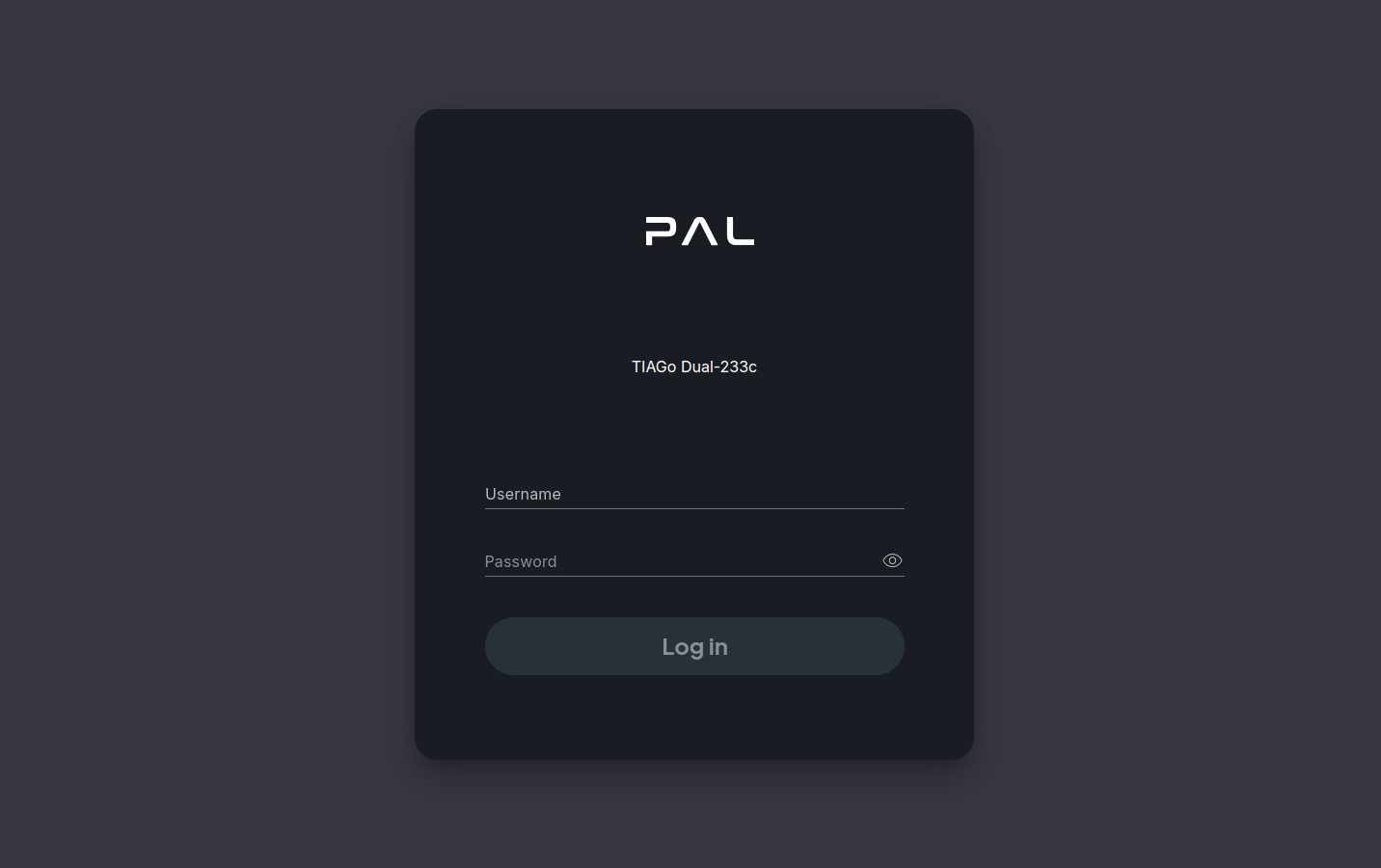
Figure 2: WebGUI Login page.
Once authenticated you will automatically be redirected to the main page. The session lasts for a week, or until the user logs out, whichever happens first.
Main interface#
The WebGUI interface consists of four main elements:
Top-left corner: PAL logo, which navigates back to the main page.
Left-side menu: Contains an account button with options such as password management and UI preferences (e.g., Dark/Light mode). It also contains a list of available web apps, which can be accessed by clicking on them.
Top-right corner: A persistent button displaying the connected robot’s model, serial number (SN), and avatar. It provides access to the Robot Panel, where you can monitor the main robot’s configuration and navigate to the Control Center for full control. The Robot Panel includes a Pin/Unpin button to show or hide it.
Main workspace: The central area of the screen, where the current application is displayed.
See Figure 3.
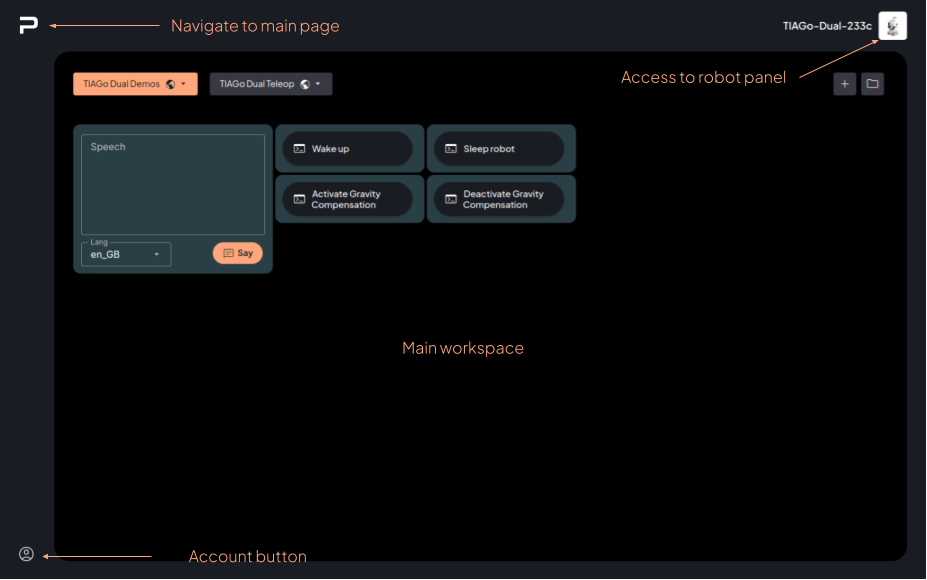
Figure 3: WebGUI main interface.