
Modules#
The PAL Module Manager is the process that manages the startup of the robot and defines which applications are started. Check the PAL Module Manager documentation for information about the modules.
Robot Panel#
The summary for the Module plugin shows a count of how many modules are in the status:
running
waiting
crashed
finished
When a specific status button on the robot panel is clicked, the Modules plugin opens in the Control Center and displays a filtered list corresponding to the selected status.

Figure 1: Modules Button
Control Center#
The interface consists of two sections: a modules list with management buttons and filters at the top.
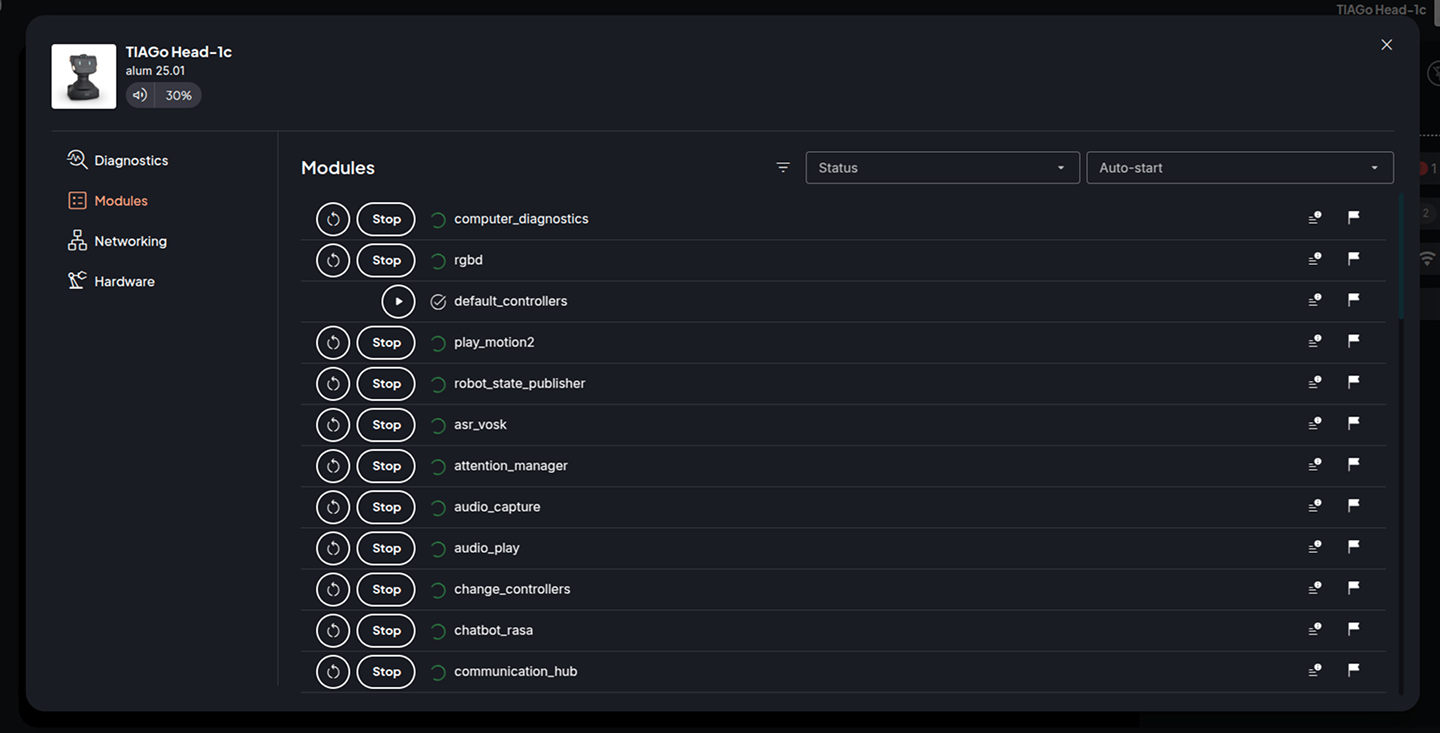
Figure 2: Modules Control Center
You can filter the module list by status and/or enabled/disabled state.
̣
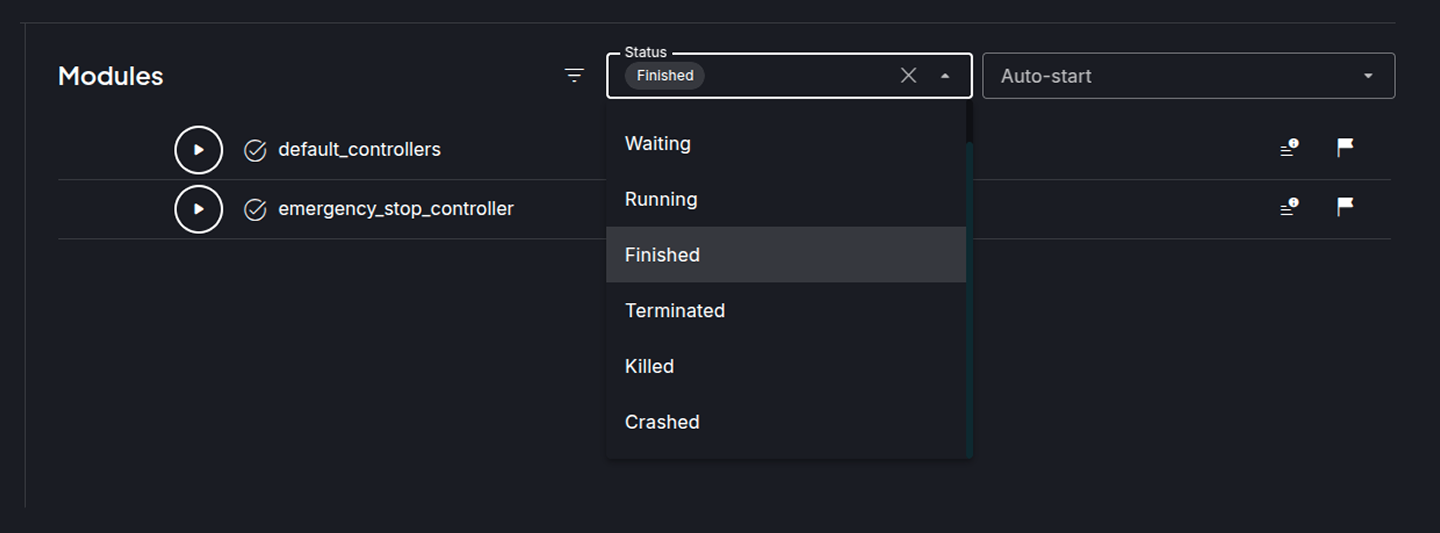
Figure 3: Modules Control Center with filtered list context menu
Each module in the list includes the following options: Start/Stop buttons, a status icon, the module name, and icon buttons to access logs and toggle the module’s autostart state (enabled/disabled).

Figure 4: Modules Control Center with states
If the module is running, the Restart and Stop buttons are displayed. If the module is in any other state, only the Start button is shown.
An icon displayed next to the module name reflects its current status.
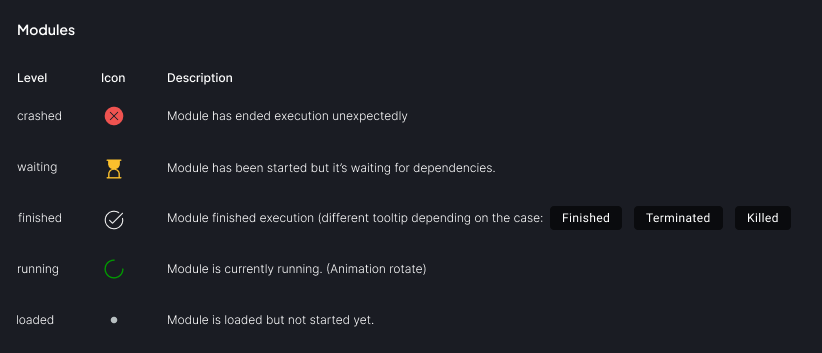
Figure 5: Modules Status Icons
On the right end of the module list item, there are two buttons:
Logsbutton, to view the logs for the selected module.Flagbutton, allows enabling or disabling the autostart of the module.
Logs Button#
The modules with Logs available will have the Logs button displayed. Click it to access the Logs container.
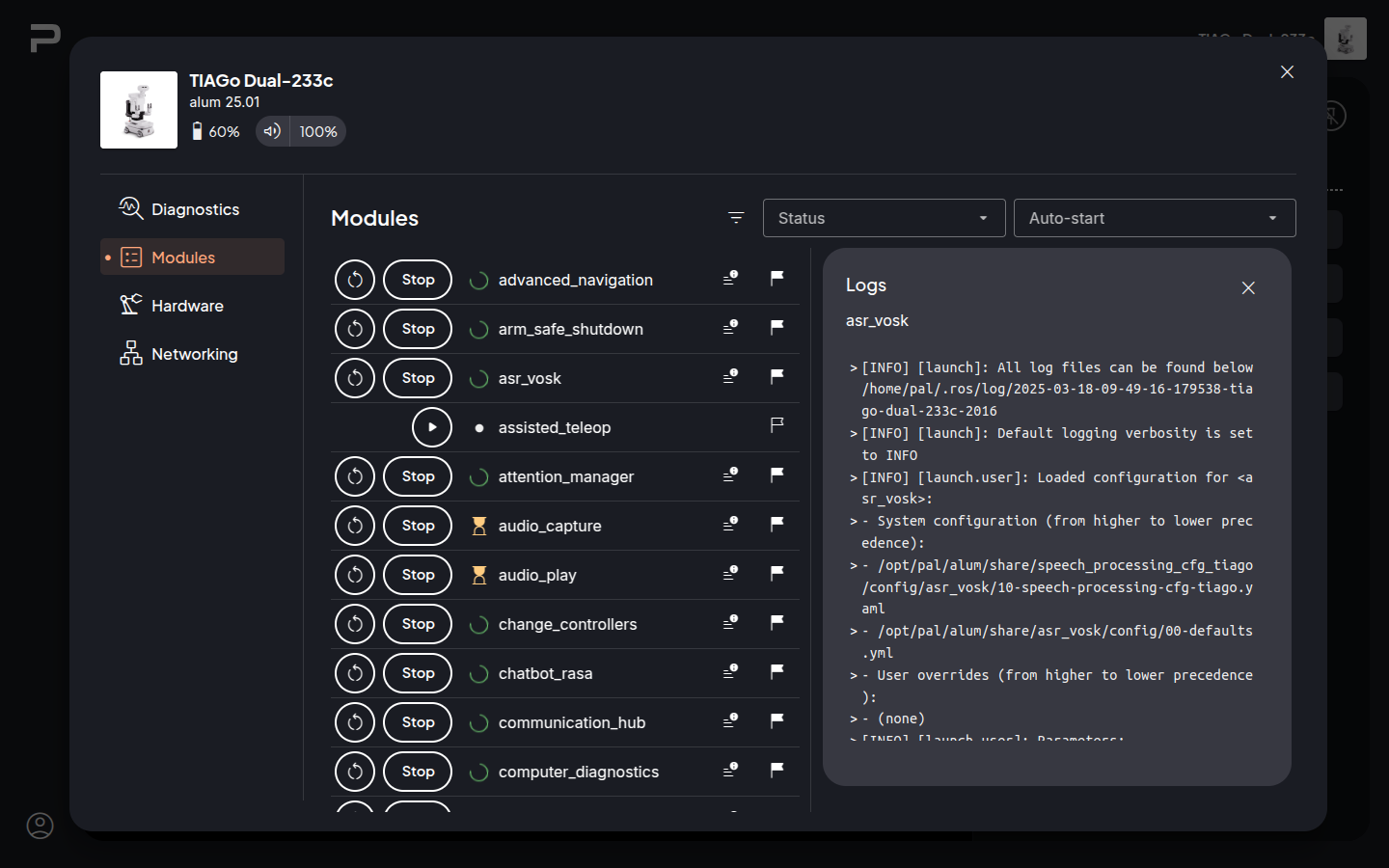
Figure 6: Modules Log Container
Module autostart button
 If the Flag appears empty it means the module is either in a LOADED state, meaning it is not included in any module set, or it has been disabled previously, so it does not autostart when the PAL module manager is restarted.
 In case the flag appears filled it means this module is started automatically when the PAL Module manager is started, either because the module was in the module set or because it was enabled previously.
Clicking on the flag will prompt you to switch its enabled/disabled status based on its current state.
!!! Note The changes to the module’s autostart state (enabled/disabled) take effect after the next robot reboot.
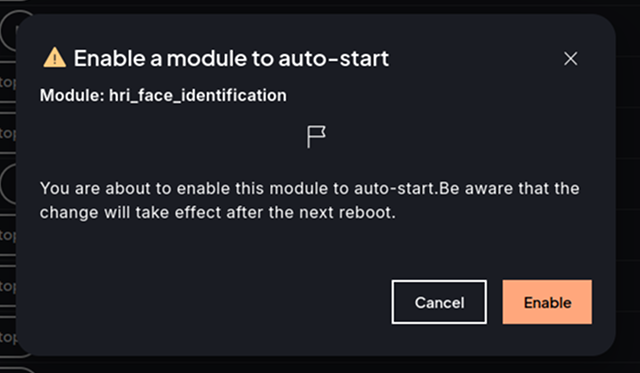
Figure 7: Modules enable popup