
WBC Controller#
The PAL Whole Body Control (WBC) is PAL’s implementation of the Stack of Tasks. This ROS 2 controller includes a hierarchical quadratic solver able to accomplish different tasks with different priorities. This page covers the kinematic WBC, the default controller for the robot’s lower body.
Default Stack#
The default stack controls the legs and pelvis (no arms), with the following tasks ordered by priority (highest first):
Priority |
Task |
Purpose |
|---|---|---|
1 |
|
Hard safety constraint: keeps all leg and pelvis joints within their position, velocity and acceleration limits. |
2 |
|
Enforces the Kangaroo leg’s closed kinematic chain coupling between the femur and knee joints. |
3 |
|
Holds/commands each foot’s 6D pose. |
4 |
|
Keeps the horizontal (XY) center of mass inside the support polygon (balance). |
5 |
|
Keeps the torso upright (pitch/roll). |
6 |
|
Bounds how far the base can travel vertically. |
7 |
|
Commands the base Z height — this is the task the squatting demo drives. |
8 |
|
Biases the pelvis joints toward a neutral posture. |
9 |
|
Minimizes joint accelerations, keeping the solution smooth wherever higher-priority tasks leave freedom. |
Launching the Controller#
1. Ensure the robot is in home position#
The WBC assumes the robot starts from its home posture. Follow the Homing Procedure before continuing.
2. Deactivate the leg position controllers#
By default the robot’s legs and pelvis are held by position controllers. The WBC needs to claim the same joint command interfaces, so those controllers must be deactivated first:
ros2 control switch_controllers --deactivate \
  leg_right_position_joint_controller leg_left_position_joint_controller pelvis_controller --best-effort
This is standard ros2_control behavior: deactivating a controller releases the command interfaces it was writing to, but the joint actuators keep holding their last commanded position, so the robot does not fall.
Note
In simulation this step is only needed if those position controllers were actually started. If they were not started explicitly in the simulation, skip this step.
3. Launch the WBC#
ros2 launch kangaroo_wbc kangaroo_wbc_kinematic.launch.py leg_length_control_type:=impedance_control
leg_length_control_type:=impedance_control is required: the leg-length joints must run in impedance control for a smoother WBC operation.
All controllers (the local joint controllers and pal_wbc_controller) are loaded inactive — they still need to be activated. The local joint controllers are per-joint controllers (e.g. leg_left_1_joint_position_control) chained below the WBC: the WBC computes a whole-body solution and each one closes the position or impedance loop for its single joint.
4. Activate the controllers#
ros2 control switch_controllers --strict --activate-asap \
  --activate \
  pelvis_1_joint_position_control \
  pelvis_2_joint_position_control \
  leg_right_5_joint_position_control \
  leg_right_4_joint_position_control \
  leg_left_5_joint_position_control \
  leg_left_4_joint_position_control \
  leg_right_length_joint_impedance_control \
  leg_left_length_joint_impedance_control \
  leg_right_1_joint_position_control \
  leg_left_1_joint_position_control \
  leg_right_3_joint_position_control \
  leg_right_2_joint_position_control \
  leg_left_3_joint_position_control \
  leg_left_2_joint_position_control \
  pal_wbc_controller
This activates every local joint controller together with pal_wbc_controller in a single, ordered switch.
5. Verify#
ros2 control list_controllers
All the controllers above should be listed as active. To inspect which command interfaces are claimed:
ros2 control list_hardware_interfaces
To print the active set of tasks in the stack:
ros2 service call /pal_wbc_controller/stack_description pal_wbc_msgs/srv/GetStackDescription {}
Reference Types#
The reference_type launch argument selects how task references (e.g. feet pose, base height) are fed into the stack:
InteractiveMarkerOperationalSpaceGoalReference(default): references are set manually by dragging RViz Interactive Markers. Use this for manual/interactive testing.Launch RViz:
rviz2
Add an
InteractiveMarkersdisplay, set its Update Topic to the task you want to move (e.g..../base_height/update), and a marker will appear on the robot. Drag the arrows to change position or the rings to change orientation: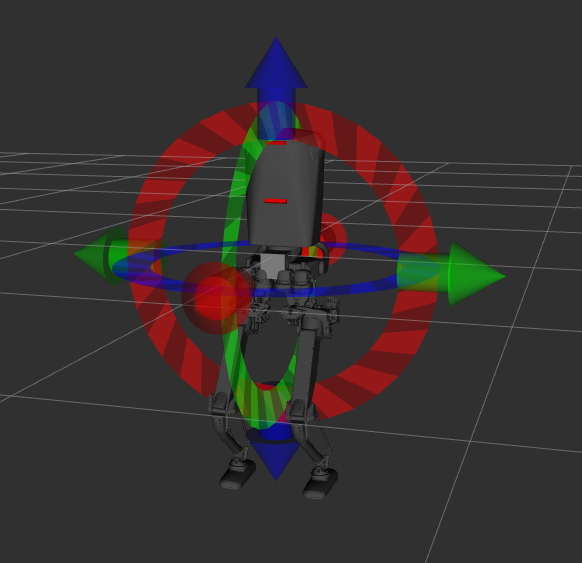
TopicOperationalSpaceGoalReference: references are streamed programmatically via apal_control_msgs/OperationalSpaceGoaltopic. Each task subscribes to its own topic, named/<link_name>_osg(e.g./base_link_osg,/left_sole_link_osg,/right_sole_link_osg,/torso_link_osg). Use this for scripted motions, such as the squatting demo below. Select it at launch:ros2 launch kangaroo_wbc kangaroo_wbc_kinematic.launch.py \ leg_length_control_type:=impedance_control \ reference_type:=TopicOperationalSpaceGoalReference
Squatting Demo#
With the WBC launched using reference_type:=TopicOperationalSpaceGoalReference, a squatting motion can be triggered by streaming a base_height reference:
ros2 run kangaroo_wbc squat_demo.py
The demo lowers the base and brings it back up to standing height, driving the base_height task through /base_link_osg. The duration parameter sets how long each direction (down / up) takes, in seconds (default 8.0):
ros2 run kangaroo_wbc squat_demo.py --ros-args -p duration:=12.0