
Networking#
Robot Panel#
The robot panel summary displays an icon with ‘API Mismatch’ error in case there was an error connecting with the Mikrotik Router onboard the robot.

Figure 1: Mikrotik Button
Control Center#
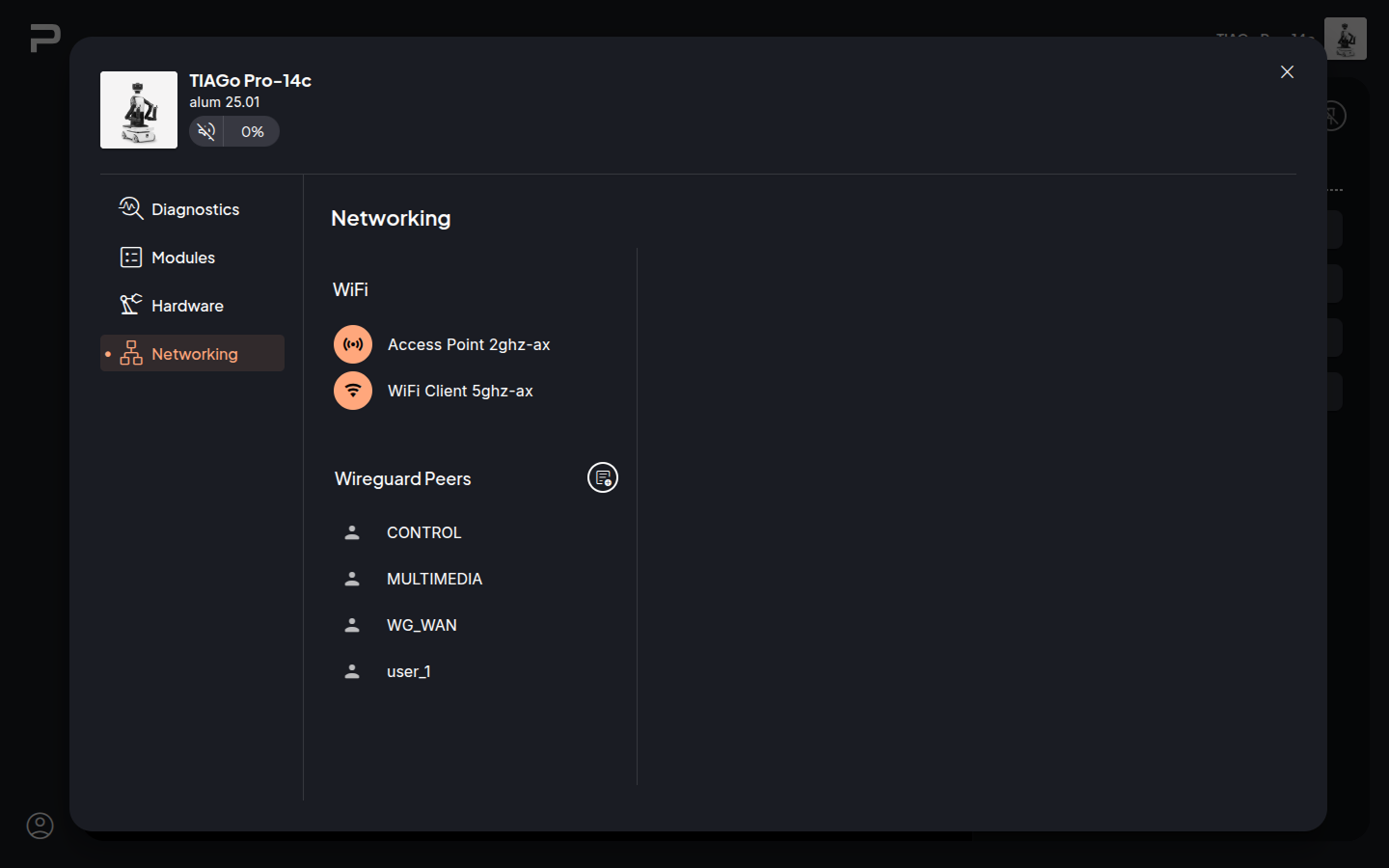
Figure 2: Mikrotik Control Center
The Mikrotik Networking plugin allows to view and edit the configuration for both WiFi interfaces and also view and create Wireguard peers configurations.
Access Point configuration
Clicking on Access Point 2.4GHz the network editor will open on the right.
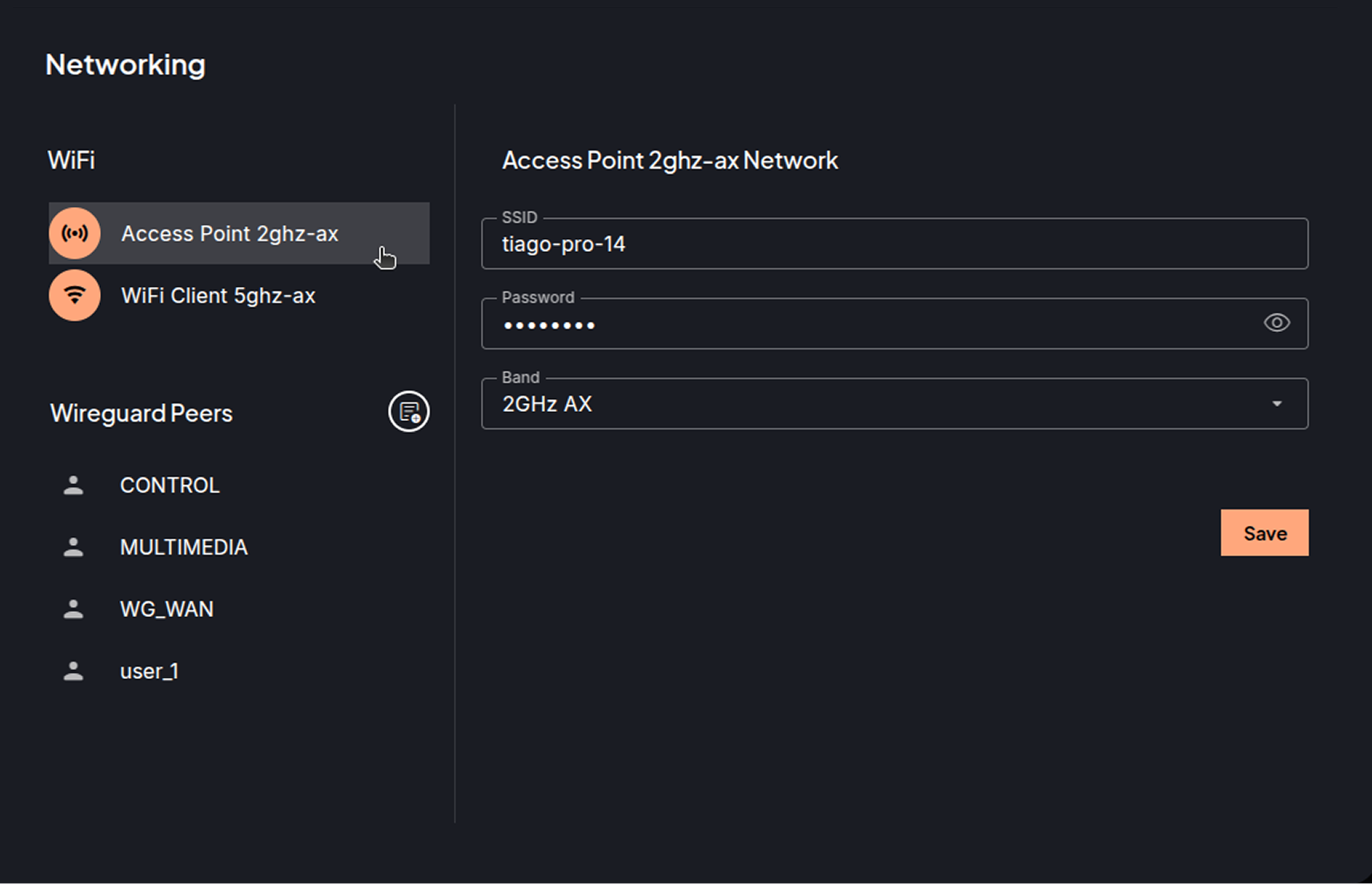
Figure 3: Mikrotik Acces Point configuraion
When the editor is opened, the fields are showing the current configuration of the network.
There are the following fields which can be edited:
SSID, name with which the network will be discoverable.
Password, with which the access point network can be connected. The eye icon on the password field allows to toggle the password visibility.
Band, allows selecting the band frequency standard from the available options. Clicking on
Savewill prompt to confirm saving the modifications.
Clicking on the close button in the upper right corner of the editor wlll exit without saving any changes.
Client WiFi configuration#
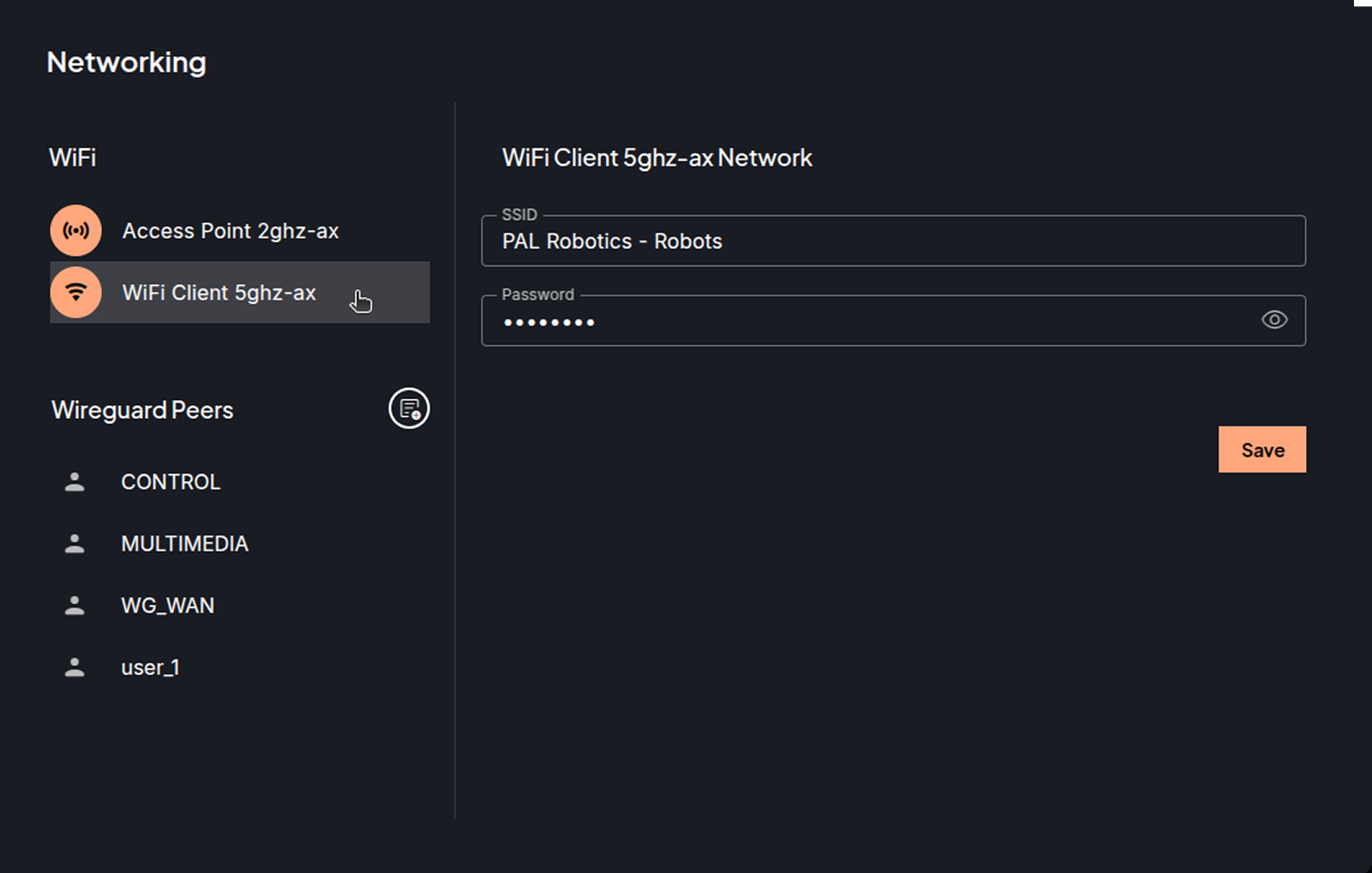
Figure 4: Mikrotik Client Wifi configuration
Clicking on WiFi Client 5Ghz opens the editor to modify the following fields:
SSID, name of the WiFi network for the robot to connect to.
Password, for the network.
Clicking Save will prompt to confirm the changes.
Wireguard peer setup#
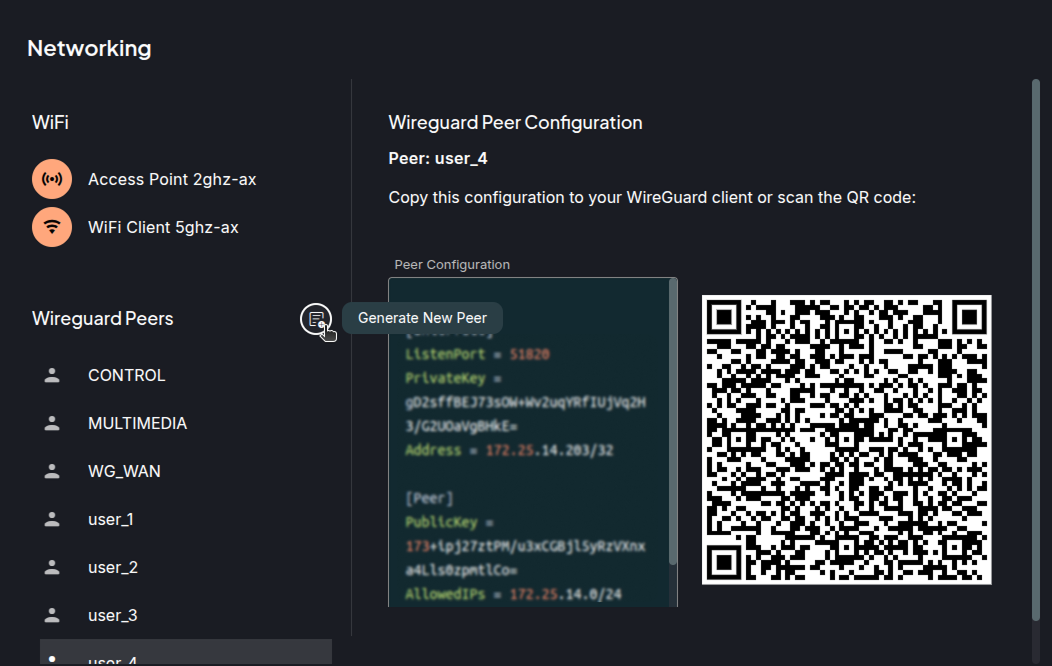
From this networking plugins new peers can be created or viewed for the Robot LAN through the Mikrotik router.
Create#
Clicking on the Generate Peer button, it will generate a new peer configuration for a device.
Take note of the user assigned for the created peer configuration to later reuse it.
View#
Clicking on a configuration from the Wireguard Peers section, will open the editor with configuration for the selected peer.
!!! Note The CONTROL, MULTIMEDIA, and WG_WAN are reserved configurations for the computers onboard the robot.
Copy this configuration in a wg conf file or scan the QR from the Wireguard app to start using the wireguard tunnel.